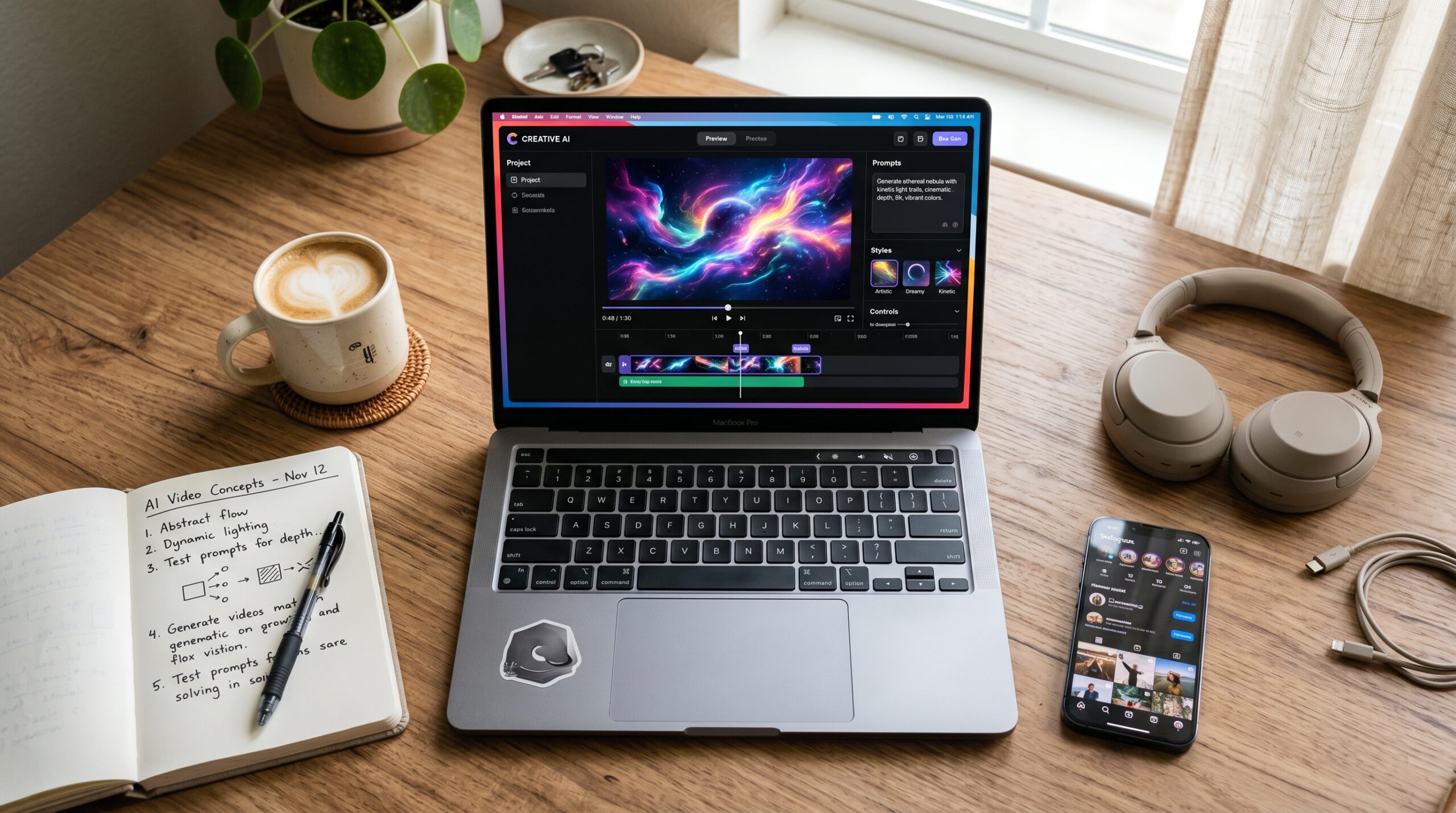
So last month I had this brilliant idea. I was going to make a quick promo video for a side project, nothing fancy, just something to post on Instagram and maybe LinkedIn. I figured, hey, it’s 2026, AI does everything now. I’ll just type a prompt, get a video, post it, done. Twenty minutes, max.
Three hours later, I had seven failed attempts, a video where my “professional spokesperson” had six fingers on one hand, and a strong urge to throw my laptop out the window.
If you’re reading this, you’ve probably been there too. Or you’re about to be. Either way, let me save you the headache because I’ve spent the last few months testing pretty much every Best Free AI Video Generators 2026 I could get my hands on, and the gap between the marketing hype and what these tools actually deliver is wider than I expected.

Why I Started Looking for Free Options in the First Place
Here’s the thing nobody tells you upfront: most of the “Best Free AI Video Generators 2026” AI video tools aren’t really free. They give you a watermark, a 5-second clip, or three credits that vanish if you blink. I learned this the hard way after signing up for one platform that advertised “free forever” and then asked for my credit card before I could even export a clip.

I needed something genuinely usable without paying, partly because I wasn’t sure if AI video was even going to fit my workflow, and partly because, well, I’m cheap. So I made a list, started testing, and took notes on what actually worked versus what was just demo bait.
The Tools That Actually Held Up
Runway AI (Free Tier)
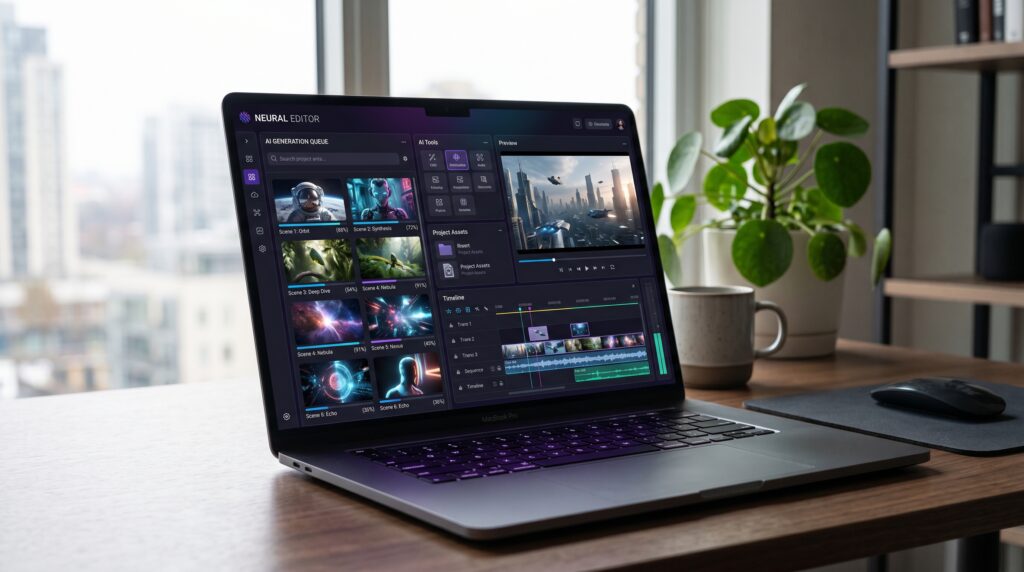
Runway is still the one most people mention first, and for good reason. The free tier gives you 125 credits to start, which translates to a few short generations. The quality on Gen-3 Alpha (and now whatever they’re calling the newer model) is genuinely impressive for short clips.
I made a 4-second clip of a coffee cup steaming on a wooden desk and honestly, if you scrolled past it on a feed, you wouldn’t know it was AI. The trouble starts when you try anything with people doing complex movements. Hands are still a nightmare. Walking looks like a videogame from 2008.
Best for: B-roll, atmospheric shots, abstract visuals, product mockups. Not great for: Anything with realistic human action.
Pika AI

Pika won me over because the interface doesn’t make me feel stupid. You type what you want, you get a video. The free plan resets credits daily, which is genuinely useful if you’re just experimenting.
I used Pika to make a short animation for my niece’s birthday card (yes, I am that uncle). It was a cartoon dog jumping into a pile of leaves. It came out cute, weird in places, and she loved it. Took maybe four tries to get something usable.
The lip-sync feature is also surprisingly decent if you’re making talking-head content. Not perfect, but better than I expected from a free tool.
Kling AI
This one surprised me. Kling came out of China and I’ll admit I almost skipped it because I assumed the English interface would be janky. It’s not. The free plan gives you daily credits, and the motion quality is genuinely some of the best I’ve seen at this price point (which is zero).
I made a clip of a person walking through a forest, and the way the leaves moved, the way the light shifted, it actually looked believable. The catch? Generation times can be brutal during peak hours. I once waited 40 minutes for a 5-second clip.
Haiper AI
Haiper flies under the radar but it shouldn’t. The free tier is generous, the quality is solid, and they’ve got a feature where you can extend clips, which most free tools won’t let you do without paying. I used it to make a looping background video for a presentation and it worked first try, which almost never happens.
Luma Dream Machine
Luma’s free tier is more limited now than it was a year ago, but the quality is still top-shelf when you do get to use it. The image-to-video feature is where it really shines. Upload a photo, describe how you want it to move, and you get a surprisingly cinematic result.
I tried this with an old family photo (yes, slightly creepy, but also kind of beautiful) and it brought a frozen moment into gentle motion. My mum cried. So, mixed results.
Hailuo (MiniMax)
Another one from the Chinese AI scene that’s quietly competing with the big names. Free generations, decent quality, and it handles motion physics better than most. Good for action shots, sports-style clips, anything where things need to move with weight and momentum.
My Step-by-Step Process for Getting Decent Results
After all this trial and error, here’s the workflow I actually use now when I need a free AI video clip:
Step 1: Decide what you actually need before you open any tool. This sounds obvious but I used to open Runway and just start typing. Now I write out the shot in plain English first. “Close-up of hands typing on a keyboard, warm afternoon light, slow zoom in.” Specific. Concrete.
Step 2: Start with the cheapest tool first. If Pika or Haiper can do it, why burn Runway credits? I save the premium-feeling tools for the shots that really need polish.
Step 3: Generate three or four variations. Never settle for the first output. Even with the same prompt, you’ll get different results. Pick the best one, or better, combine elements from a couple of them in editing.
Step 4: Edit in something simple. I use CapCut on my phone or DaVinci Resolve on my laptop, both free. AI clips often need trimming, colour grading, or a music track to actually feel like content. Raw AI output rarely works on its own.
Step 5: Add audio. This is the part most people skip. A silent AI clip looks fake. Add ambient sound, music, or voiceover and suddenly it feels real. I use Pixabay and Freesound for royalty-free audio.
Mistakes I Made (So You Don’t Have To)

I asked one tool for “a businesswoman giving a presentation” and got someone whose mouth moved independently of her face. Lesson: avoid complex human action shots. Stick to subtle movements, environmental shots, or stylised animation.
I wrote prompts that were too long. I thought more detail would help. It actually confused the model. Now I keep prompts under 30 words and the results are noticeably better.
I tried to use AI video for an entire project. Bad idea. AI video works best as B-roll or accents inside real footage or a real edit. Treating it like a full replacement for filming or stock footage just leaves you frustrated.
I trusted the first export. Some tools compress video heavily on export, and what looked sharp in preview came out muddy on Instagram. Always check the export resolution settings.
When Free Actually Isn’t Enough
I’ll be honest. If you’re making content professionally, free tiers will eventually frustrate you. The credit limits, the watermarks on some platforms, the slower generation queues, they add up. But for hobby projects, social posts, learning the craft, or just figuring out if AI video is right for your workflow, the free options in 2026 are genuinely good.
I’d say start free, push the tools as far as they’ll go, and only pay when you can clearly point to the bottleneck. For me that took about three months before I finally bit the bullet on a paid plan, and by then I knew exactly which tool I wanted to commit to.
A Few Things to Watch Out For
Some platforms include a watermark on free exports. Read the terms before you spend time making something you can’t use.
Free credits often expire. If you sign up and don’t use them, they’re gone in 30 days on most platforms.
Copyright is still a grey area. Don’t generate clips of real celebrities, branded characters, or anything you’d be uncomfortable explaining if someone asked where it came from.
Some tools train on your inputs. If you’re uploading private images or company material, check the privacy policy first.
What I’d Actually Recommend if You’re Just Starting
If you want my honest take, here’s what I’d do if I were starting from scratch today. Pick two tools. Just two. I’d grab Pika and Kling, learn them inside out, and ignore the rest until you hit a wall. The mistake everyone makes (myself included) is chasing every new tool that launches. You end up knowing all of them badly instead of one or two of them well.
Spend a weekend just making throwaway clips. No project, no deadline, just play. You’ll learn more about what these tools can and can’t do in two afternoons of experimentation than in a month of reading articles like this one.
And honestly? Don’t expect magic. AI video in 2026 is impressive in flashes and frustrating in long form. It’s a tool, not a miracle. Used right, it can save you hours and let you make things that would’ve been impossible a few years ago. Used wrong, it’ll eat your weekend and give you nothing usable.
The good news is that the free tiers are good enough now that you can actually find out for yourself which camp you’re in, without paying a penny. That wasn’t true even a year ago. So have a play, make some weird stuff, and see where it takes you.